
Overview
Provides step-by-step instructions on how to review your accrual balances in MyTime as an employee.
Accruals are amounts of time in days or hours, or money, that a person earns, commonly referred to as leave time, paid time-off, or benefit time.
Options to view your accrual balances in MyTime vary based on your role.
| Role | My Time Off homepage tile | My Accrual Balance homepage tile | Employee Accruals Dataview | Timecard |
|---|---|---|---|---|
Employee | Yes | Yes | Yes | No |
Manager | Yes | No | No | Yes |
It’s important to note that UCPath is the system of record for calculating most leave accruals.
- To view your accrual balances in UCPath, see the Review My Absence Balances job aid.
- Learn more about Understanding Leave Balances in MyTime and UCPath.
For additional instructions for managers on reviewing the balances of your direct reports, see Review Employee Accrual Balances.
View Accruals from the My Time Off Tile
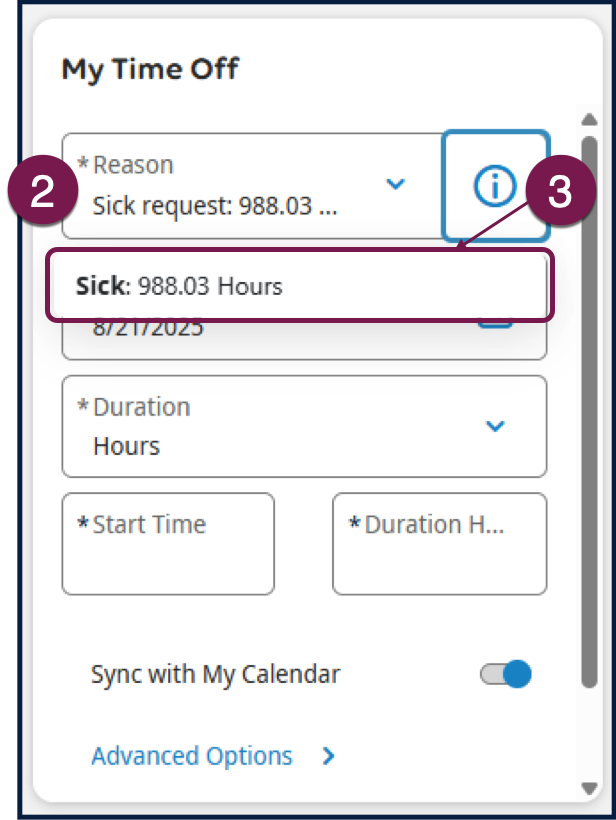
The My Time Off tile displays limited information about the accrual balance. Selecting the “i” icon when choosing the type of accrued time off to be deducted displays the accrued balance as of the beginning of the current pay period, minus any future takings recorded on your timecard. Note: The beginning-of-pay-period balance reflects the current Ending Balance in UCPath. The balance does not reflect leave taken in the prior pay period that has not yet been sent to UCPath, nor does it reflect future earnings.
- Navigate to the My Time Off tile.
- In the Reason field, select a time off type from the drop-down menu.
- Click or tap the “i” icon to the right of your selected time off type to view the corresponding accrual balance.
View Accruals from My Accrual Balance Tile (employees only)
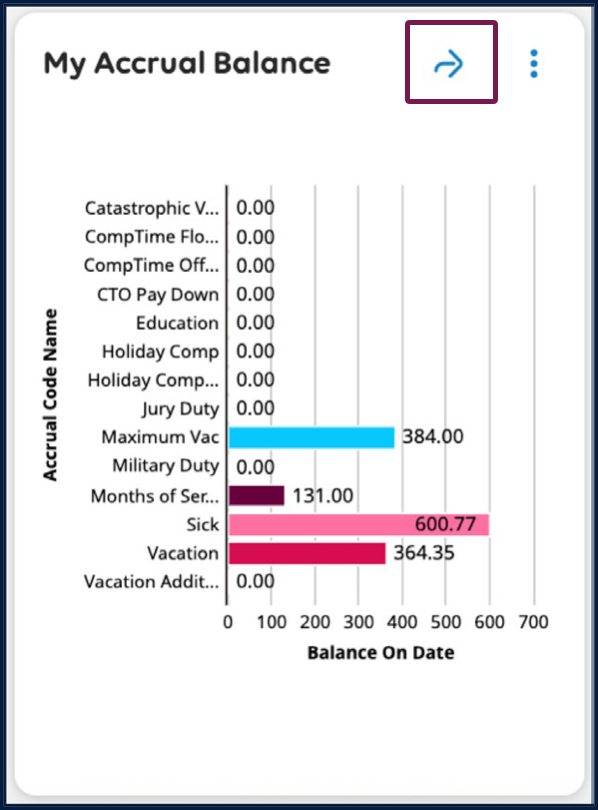
The My Accrual Balance tile on the MyTime Dashboard shows a summary of accrual balances in bar chart format.
Click the arrow on the tile to view accrual balance details in the Employee Accruals dataview.
Run the Employee Accruals Dataview (employees only)
In addition to navigating using the arrow on the My Accrual Balance tile as outlined in the section above, you can also navigate to and run the dataview from the main menu.
- Navigate to the Main Menu, expand Dataviews & Reports, and select Dataview Library.
- Select the Employee Accruals dataview in the Timekeeping category.
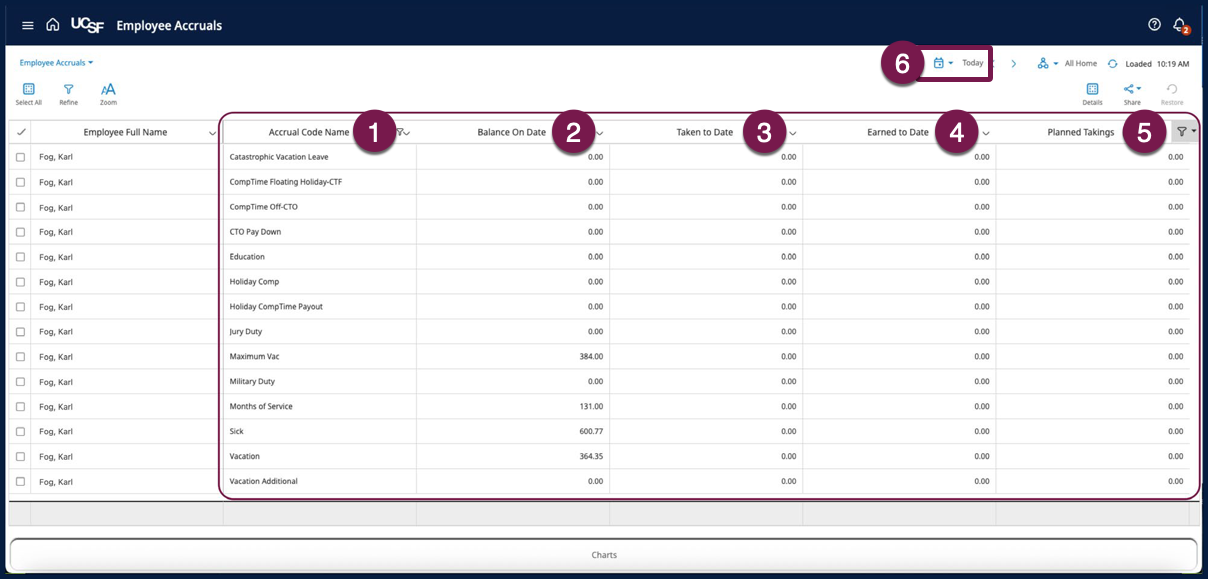
The Employee Accruals dataview displays the following columns:
- Accrual Code Name: This column indicates the type of leave, such as sick leave, vacation, or other leave categories. Leave balances are grouped by UCPath absence groups, and users will see more balance groups than are applicable to the employee.
- Balance On Date: The balance on the selected date in the timecard. The balance will adjust depending on the date selected on the timecard, taking into consideration any leave recorded on the timecard for the current pay period.
When you select the beginning of a pay period, the balance will equal the UCPath Ending Balance as of the prior period. This is your current leave balance in UCPath and does not reflect leave taken in the prior period that has not yet been sent to UCPath.
- Taken to Date: Indicates the leave taken through the date selected on the timecard in the current reporting period. Does not include leave taken in the prior period that has not yet been sent to UCPath.
- Earned to Date: Indicates the earnings through the date selected on the timecard for the current reporting period. Earned amounts are only displayed in MyTime for balances calculated in MyTime (e.g., CTO). Earned amounts for balances calculated in UCPath (e.g., vacation, sick, PTO) are viewable in UCPath.
- Planned Takings: Future leave recorded on the timecard.
- All data reflect the accruals for the selected reporting period; “Today” is the default. Click or tap “Today” to select a different reporting period.
View Accruals in the Timecard (managers only)
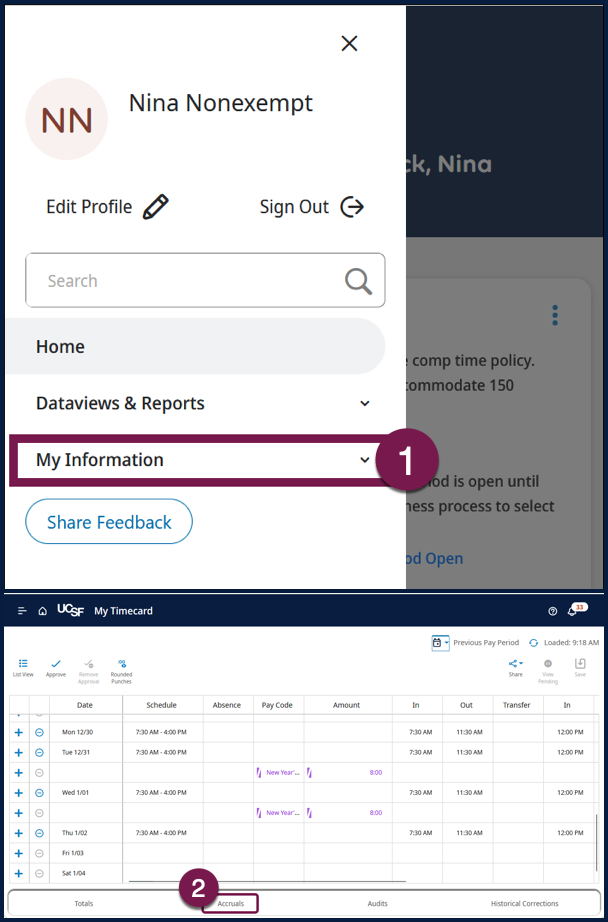
- From the Main Menu, navigate to My Information, and then select My Timecard.
- At the bottom of the timecard select Accruals tab.
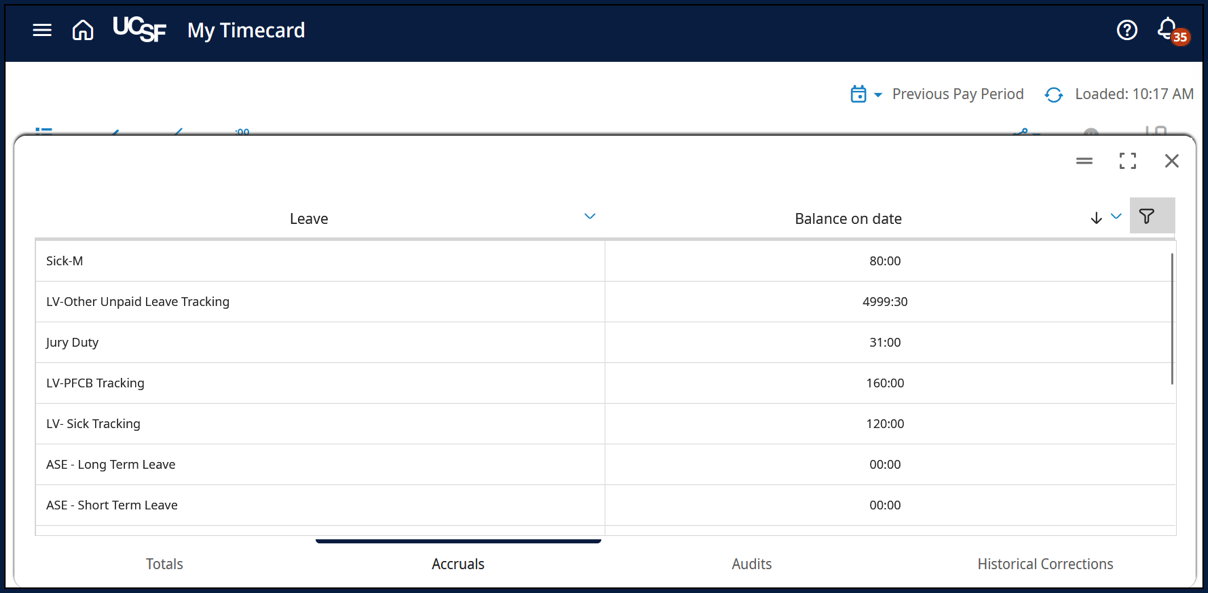
The Accruals add-on displays the following fields:
- Leave: this column indicates the type of leave, such as sick leave, vacation, or other leave categories. Leave balances are grouped by UCPath absence groups, and users will see more balance groups than are applicable to the employee. Note: Months of Service and Maximum Vac also appear in this section. Months of Service are for leave accrual processing purposes, not retirement service credit purposes. Maximum Vac comes from UCPath and is in alignment with policy and applicable labor contracts.
- Balance on Date is the balance on the selected date in the timecard. The balance will be adjusted based on the date selected on the timecard, taking into account any leave recorded in the current pay period.
When you select the beginning of a pay period, the balance will equal the UCPath Ending Balance as of the prior period. This is your current leave balance in UCPath and does not reflect leave taken in the prior period that has not yet been sent to UCPath.